Tax loss carry-forward tracker
Track each year's tax loss, how much has been used and the last year it can be set against profit before it expires.

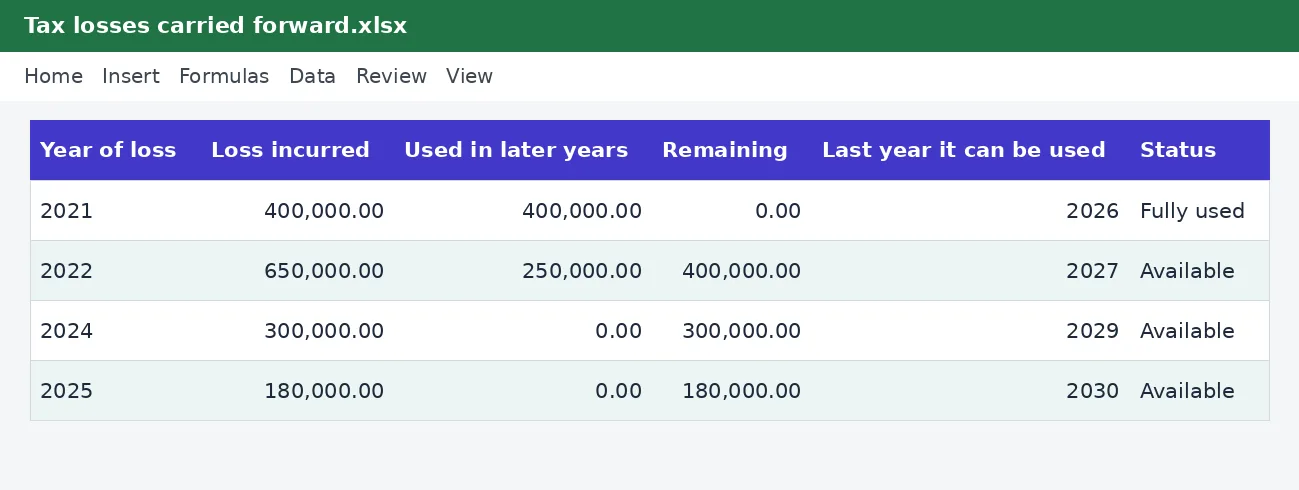
A business that makes a loss can often set it against later profits, but only for a limited number of years. This tracker lists each loss, the amount used so far and the last year it can be used, then marks it available, fully used or expired, and shows how much you can still use this year.
Company directors and sole traders with a loss-making year, and accountants who must show which losses are still usable when computing tax.
What is included
- Last year of use worked out for each loss
- Available, fully used or expired status
- Amount still available and amount expiring this year
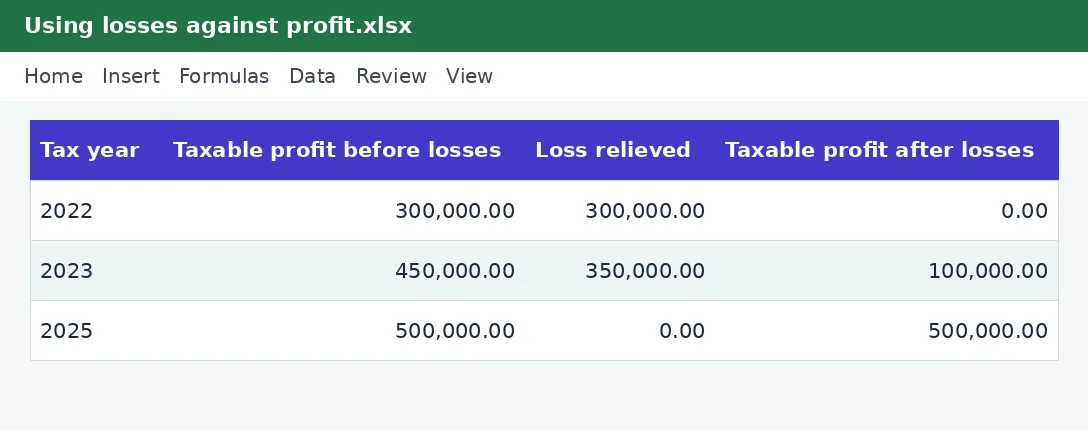
- Year-by-year sheet to relieve losses against profit
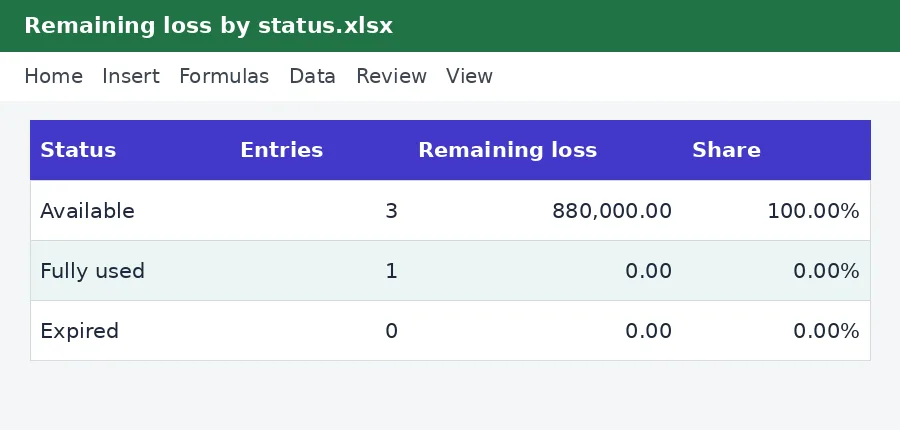
- Summary of remaining loss by status
Advertisement
Screenshots
How to use it
- Type the current year at the top of the Losses sheet and check the carry-forward period on the Rates sheet.
- List each year in which the business made a tax loss and the amount.
- Record the part of each loss used in later years.
- Read the status and the amount that can still be used or is about to expire.
Templates are tools to help with your own records. They are not tax or legal advice. Check the figures against official sources before filing or paying.
Advertisement
More in this category
-
 Taxpdf
Tax audit survival guide
What to do when KRA announces an audit: the types, your rights, the documents to prepare and how to respond.
KES 1,080KES 1,200-10%
View details →
-
 Taxpdf
Rental income tax guide for landlords
Monthly rental tax or annual return? How landlords register, file, pay and keep records, with a worked example.
KES 720KES 800-10%
View details →
-
 Taxpdf
Withholding tax guide for Kenyan businesses
Who must withhold tax, on which payments, at what rates, and how to remit, issue certificates and keep records.
KES 720KES 800-10%
View details →
What the tax loss carry-forward tracker does
A business that makes a loss can often set it against later profits, but only for a limited number of years. This tracker lists each loss, the amount used so far and the last year it can be used, then marks it available, fully used or expired, and shows how much you can still use this year.
Who it is for
Company directors and sole traders with a loss-making year, and accountants who must show which losses are still usable when computing tax.
How to use the workbook
- Type the current year at the top of the Losses sheet and check the carry-forward period on the Rates sheet.
- List each year in which the business made a tax loss and the amount.
- Record the part of each loss used in later years.
- Read the status and the amount that can still be used or is about to expire.
- Save a copy under a new name for each month or year, so earlier records stay as they were.
What is inside
- Last year of use worked out for each loss
- Available, fully used or expired status
- Amount still available and amount expiring this year
- Year-by-year sheet to relieve losses against profit
- Summary of remaining loss by status
The workbook has these sheets: Instructions, Losses, Relief, Summary, Rates. The main table has the columns Year of loss; Loss incurred; Used in later years; Remaining; Last year it can be used; Status. Yellow cells are for you to fill in and grey cells calculate by themselves, so leave the grey cells alone. The example rows show how it works; type over them with your own entries.
Tips for getting it right
- Use the oldest loss first, because it expires first.
- Keep the computations that support each loss; KRA may ask for them.
- Check the carry-forward rule for your year with KRA or an adviser.
- Remember a loss must be declared on the return for the year it arose.
Why keep this record
Most tax trouble comes from late or missing records rather than from the tax itself. When the figures are collected as they happen, preparing a return becomes a matter of copying totals, not of searching for receipts. A workbook that follows the same layout as the return also makes it easier to spot a number that looks wrong before KRA does, and to explain it if asked.
Questions people ask
Do I need to know Excel formulas? No. Type into the yellow cells and the rest is worked out for you. The formulas are visible if you want to see how a figure is reached.
Can I add rows or change the layout? You can add your own columns to the right and your own notes. If you insert rows inside a table, copy the grey formula cells down so the new rows calculate too.
Will it work on my phone or in Google Sheets? Yes for viewing and typing, but dropdown lists and the charts look best in desktop Excel or LibreOffice.
Keeping it safe and up to date
Tax figures change with each Finance Act, so check the Rates sheet against KRA's current guidance before you file. Keep the supporting documents with the workbook, and keep each year's copy for at least five years in case KRA asks for proof.
Read the KRA filing calendar for small businesses for the wider picture. Free calculators that go with it: Corporation tax calculator, Kra penalty calculator. See more tax templates or ask us for a custom one.
The workbook works in Microsoft Excel, LibreOffice and Google Sheets. It is a tool to help you work out and record figures, not tax, legal or accounting advice, and it is not affiliated with the Kenya Revenue Authority. If something does not work as described, contact us and we will put it right.
Related guides, calculators and templates
- Free calculator: Corporation Tax Calculator
- Free calculator: KRA Late Filing Penalty and Interest Calculator
- Guide: Why imports get delayed at the port in Kenya, and how to avoid it
- Guide: How to register for turnover tax and file monthly returns on iTax
- Guide: When to hire an accountant or tax agent, and what to expect
- Another template: Corporation tax computation workbook
- Another template: KRA filing and payment calendar
- Another template: PAYE monthly return reconciliation
Need something different? Request a custom template, browse all guides or see every Excel template.
Scroll inside the box to read more.