Staff expense claim form
A clear expense claim for staff: list receipts by category, subtract any advance and see the amount to reimburse.

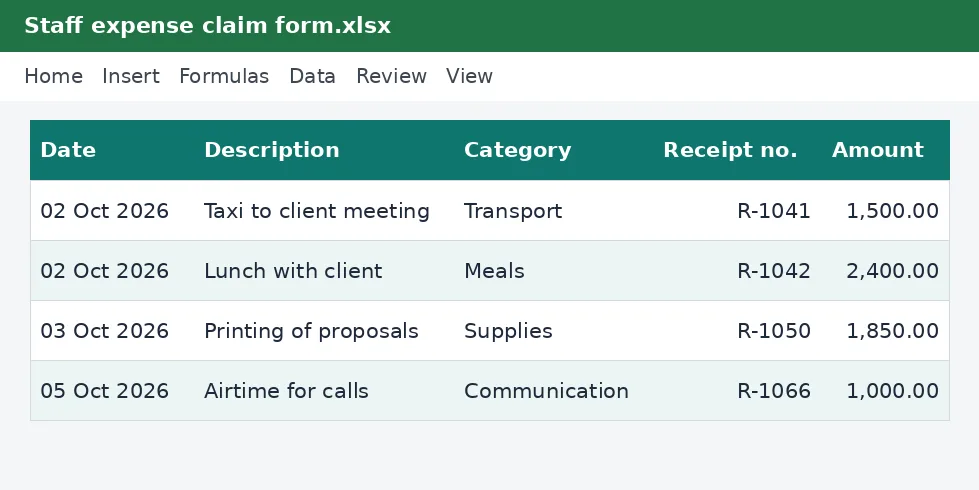
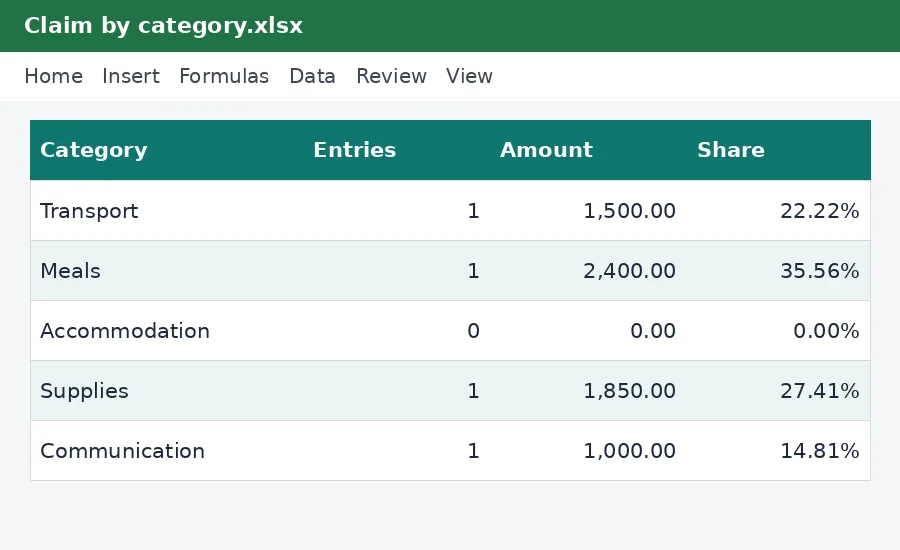
Expense claims cause arguments when they are vague. This form lists each expense with its date, category, receipt number and amount, totals them, subtracts any advance already received and shows the amount the company owes the employee, with a summary by category that helps the accountant code the claim.
Employees who pay business costs from their own pocket, the managers who approve their claims and the accountants who reimburse and record them.
What is included
- Date, description, category, receipt number and amount
- Total claimed, advance received and amount due
- Spending by category with a chart
- Space for 60 expense lines
- Approval lines for manager and finance
Advertisement
Screenshots
How to use it
- Enter the employee name, the period and any advance received.
- List each expense with its date, category, receipt number and amount.
- Attach the receipts in the same order as the list.
- Submit the claim for approval; the amount due is calculated for you.
Templates are tools to help with your own records. They are not tax or legal advice. Check the figures against official sources before filing or paying.
Advertisement
More in this category
-
 Payrollpdf
Payroll policy and procedures manual
A written payroll manual: roles, monthly timetable, calculations, approvals, payment, remittances and record keeping.
KES 1,080KES 1,200-10%
View details →
-
 Payrollpdf
Leave policy template for Kenyan employers
A complete leave policy covering annual, sick, maternity, paternity, compassionate and study leave, with how to apply.
KES 540KES 600-10%
View details →
-
 Payrollpdf
Termination and redundancy guide with letters
How to end employment lawfully in Kenya: notice, final dues, redundancy steps and the letters you will need.
KES 900KES 1,000-10%
View details →
What the staff expense claim form does
Expense claims cause arguments when they are vague. This form lists each expense with its date, category, receipt number and amount, totals them, subtracts any advance already received and shows the amount the company owes the employee, with a summary by category that helps the accountant code the claim.
Who it is for
Employees who pay business costs from their own pocket, the managers who approve their claims and the accountants who reimburse and record them.
How to use the workbook
- Enter the employee name, the period and any advance received.
- List each expense with its date, category, receipt number and amount.
- Attach the receipts in the same order as the list.
- Submit the claim for approval; the amount due is calculated for you.
- Save a copy under a new name for each month or year, so earlier records stay as they were.
What is inside
- Date, description, category, receipt number and amount
- Total claimed, advance received and amount due
- Spending by category with a chart
- Space for 60 expense lines
- Approval lines for manager and finance
The workbook has these sheets: Instructions, Claim, Summary. The main table has the columns Date; Description; Category; Receipt no.; Amount. Yellow cells are for you to fill in and grey cells calculate by themselves, so leave the grey cells alone. The example rows show how it works; type over them with your own entries.
Tips for getting it right
- Claim promptly and attach every receipt.
- Use the company's categories so the accountant can post it quickly.
- Keep eTIMS invoices where the supplier provides them.
- Deduct any advance so you are not paid twice.
Why keep this record
Staff records go wrong in small, repeated ways: a figure typed twice, a deadline forgotten, a promise that nobody wrote down. A tidy workbook that everyone uses the same way removes most of those problems. It also gives you something to show an employee, an auditor or a labour officer when a question comes up months later, and it makes the next payroll quicker because the facts are already in one place.
Questions people ask
Do I need to know Excel formulas? No. Type into the yellow cells and the rest is worked out for you. The formulas are visible if you want to see how a figure is reached.
Can I add rows or change the layout? You can add your own columns to the right and your own notes. If you insert rows inside a table, copy the grey formula cells down so the new rows calculate too.
Will it work on my phone or in Google Sheets? Yes for viewing and typing, but dropdown lists and the charts look best in desktop Excel or LibreOffice.
Keeping it safe and up to date
Payroll records are personal data and tax records at once, so keep the file somewhere only the people who need it can open, and keep each month's copy for at least five years. Statutory rates such as NSSF limits and the Housing Levy change, so check the Rates sheet against the official source before you rely on a figure.
Read how to run payroll for a small business for the wider picture. See more payroll templates or ask us for a custom one.
The workbook works in Microsoft Excel, LibreOffice and Google Sheets. It is a tool to help you work out and record figures, not tax, legal or accounting advice, and it is not affiliated with the Kenya Revenue Authority. If something does not work as described, contact us and we will put it right.
Related guides, calculators and templates
- Guide: How to run payroll for a small business in Kenya
- Guide: How PAYE is calculated in Kenya, step by step
- Guide: NSSF contributions explained: tiers, limits and what you pay
- Another template: Annual PAYE and payroll summary
- Another template: Annual leave planner and register
- Another template: Benefits and allowances register
Need something different? Request a custom template, browse all guides or see every Excel template.
Scroll inside the box to read more.