VAT return working sheet
List your sales and purchases for the period and get the output VAT, claimable input VAT and VAT payable.

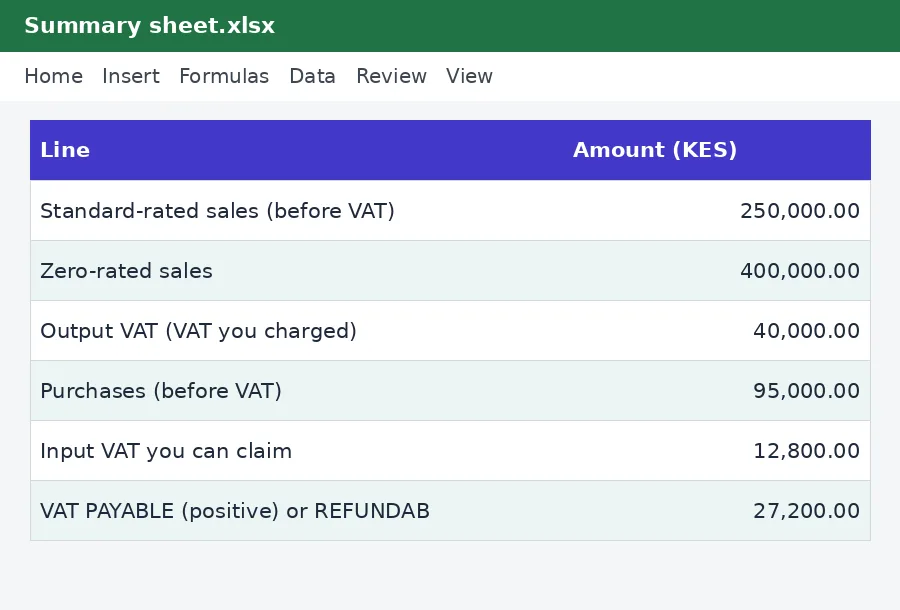
Keep your VAT workings in one place. Record each sale as standard-rated, zero-rated or exempt, and each purchase with whether you can claim its VAT. The Summary sheet follows the layout of the return, so you can copy the figures across when you file.
What is included
- Sales ledger with standard, zero-rated and exempt types
- Purchases ledger with claimable VAT
- Summary laid out like the return
- Space for 200 sales and 200 purchases
Advertisement
Screenshots
How to use it
- Check the VAT rate on the Rates sheet.
- Enter sales and purchases for the period.
- Copy the Summary figures into your return.
Rates and thresholds
Edit the VAT rate on the Rates sheet if it changes.
Templates are tools to help with your own records. They are not tax or legal advice. Check the figures against official sources before filing or paying.
Advertisement
More in this category
-
 Taxpdf
Tax audit survival guide
What to do when KRA announces an audit: the types, your rights, the documents to prepare and how to respond.
KES 1,080KES 1,200-10%
View details →
-
 Taxpdf
Rental income tax guide for landlords
Monthly rental tax or annual return? How landlords register, file, pay and keep records, with a worked example.
KES 720KES 800-10%
View details →
-
 Taxpdf
Withholding tax guide for Kenyan businesses
Who must withhold tax, on which payments, at what rates, and how to remit, issue certificates and keep records.
KES 720KES 800-10%
View details →
Prepare your VAT return from a clear set of workings
A VAT return is simple in idea and fiddly in practice. You add up the VAT you charged customers, subtract the VAT you paid on business purchases, and pay or reclaim the difference. The difficulty is that the figures come from dozens or hundreds of invoices, some taxed at the standard rate, some zero-rated, some exempt, and some purchases you cannot claim at all. This working sheet keeps those records in the shape the return needs, so that when filing day comes the numbers are already added up and checked.
Output VAT and input VAT in plain terms
Output VAT is the VAT you charge on your sales. Input VAT is the VAT you pay on what you buy for the business. The difference is what you owe KRA, or what you may claim back. The standard rate is currently 16%. A business must register for VAT once its taxable turnover reaches KES 5,000,000 a year, and may register voluntarily below that.
- Standard-rated sales carry VAT at the full rate.
- Zero-rated sales, such as many exports, carry VAT at 0%, but you can still reclaim the input VAT on your costs.
- Exempt sales carry no VAT, and you generally cannot reclaim input VAT that relates to them.
How the workbook is organised
There are four sheets. On Sales you list each invoice with its date, number, customer, the amount before VAT, and its type. The workbook calculates the VAT. On Purchases you list each supplier invoice with the amount before VAT and whether you can claim the VAT. A dropdown keeps the answers consistent. The Summary sheet follows the layout of the return: standard-rated, zero-rated and exempt sales, total output VAT, purchases, claimable input VAT, and finally the VAT payable or refundable. The Rates sheet holds the VAT rate.
A worked example
Say you made sales of KES 250,000 at the standard rate and KES 400,000 that were zero-rated exports. Output VAT is the standard rate applied to the KES 250,000 only: the exports carry none. You bought office supplies for KES 80,000 before VAT with a valid tax invoice, so the VAT on them is claimable, and you paid for staff lunches, where the VAT cannot be claimed and so is left out. VAT payable is the output VAT less the claimable input VAT. The example rows in the file show exactly this, and the Summary sheet shows each line.
What you need to claim input VAT
A claim generally needs a valid tax invoice from a VAT-registered supplier, made out to your business, and the purchase must be for the business. Many businesses are now required to use electronic tax invoices through KRA's eTIMS system, and an invoice that does not meet the requirements may not support a claim. Our guide to eTIMS e-invoicing explains what that means. Entertainment, private spending and some other items are not claimable. If you are unsure, mark the purchase No until you have checked.
Using it through the period
- Enter the VAT rate and the period on the Rates and Summary sheets.
- Record sales and purchases as they happen, not at the end of the month.
- Keep each invoice and receipt, and note its number in the sheet.
- At the end of the period, read the Summary sheet and compare it with your accounting records.
- File through iTax by the 20th of the following month and pay any VAT due by the same date.
The VAT calculator is handy for checking a single invoice, and the VAT return calculator lets you test totals quickly. The nil returns guide explains what to do in a month with no activity.
Know the limits of the sheet
This working sheet organises and adds up your figures. It does not file your return, and it does not decide whether a particular sale or purchase is treated one way or another. Special cases such as imported services, partial exemption, bad debts and credit notes need extra care. The VAT rate on its Rates sheet has not yet been verified by KenyaTax for the period. Confirm it, and the treatment of anything unusual, with the Kenya Revenue Authority or a tax adviser.
Related guides, calculators and templates
- Free calculator: VAT Calculator
- Free calculator: VAT Return Calculator
- Guide: Bank reconciliation step by step: match your books to your bank
- Guide: How to build a 12-month cash flow forecast for a small business
- Guide: VAT for small businesses in Kenya: when to register and what to charge
- Another template: Annual income tax estimator
- Another template: Instalment tax planner
- Another template: KRA filing and payment calendar
Need something different? Request a custom template, browse all guides or see every Excel template.
Scroll inside the box to read more.